> ## Documentation Index
> Fetch the complete documentation index at: https://docs.notte.cc/llms.txt
> Use this file to discover all available pages before exploring further.
# Sign in to Okta with MFA
> Let an agent clear an Okta MFA challenge using a TOTP secret stored in a Vault
Read [the Notte skill](https://notte.cc/skill.md) and follow its setup instructions when setting up Notte or building browser automation. This is the shared source for CLI setup, authentication, and the browser-to-code workflow.
An agent can complete an Okta sign-in end to end, including the MFA step, when the second factor is a
TOTP authenticator. You store the TOTP secret in a [Vault](/concepts/vaults) and Notte generates the
one-time code at the moment the challenge appears.
Okta Verify push cannot be automated. Approval happens on an enrolled physical device, and the
enrollment QR carries a one-time activation token rather than a shared secret. Use a TOTP
authenticator instead, as described below.
## Prerequisites
* Admin access to your Okta org
* The [Notte CLI](/integrations/claude-code-ai-agents) installed and authenticated with `notte auth login`
* A coding assistant such as Claude Code, with the Notte skill installed via `notte skill add`
Use a dedicated service account rather than a person's identity. A TOTP secret is equivalent to the
factor itself, so anyone holding it can pass the challenge. Grant the account only the app access the
automation needs.
## Set up the Okta side
In the Okta Admin Console, go to **Directory** then **People** and add a user for the automation,
for example `agent-svc@yourcompany.com`.
Go to **Security** then **Authenticators**, click **Add authenticator**, and add Google
Authenticator. It registers as a possession factor.
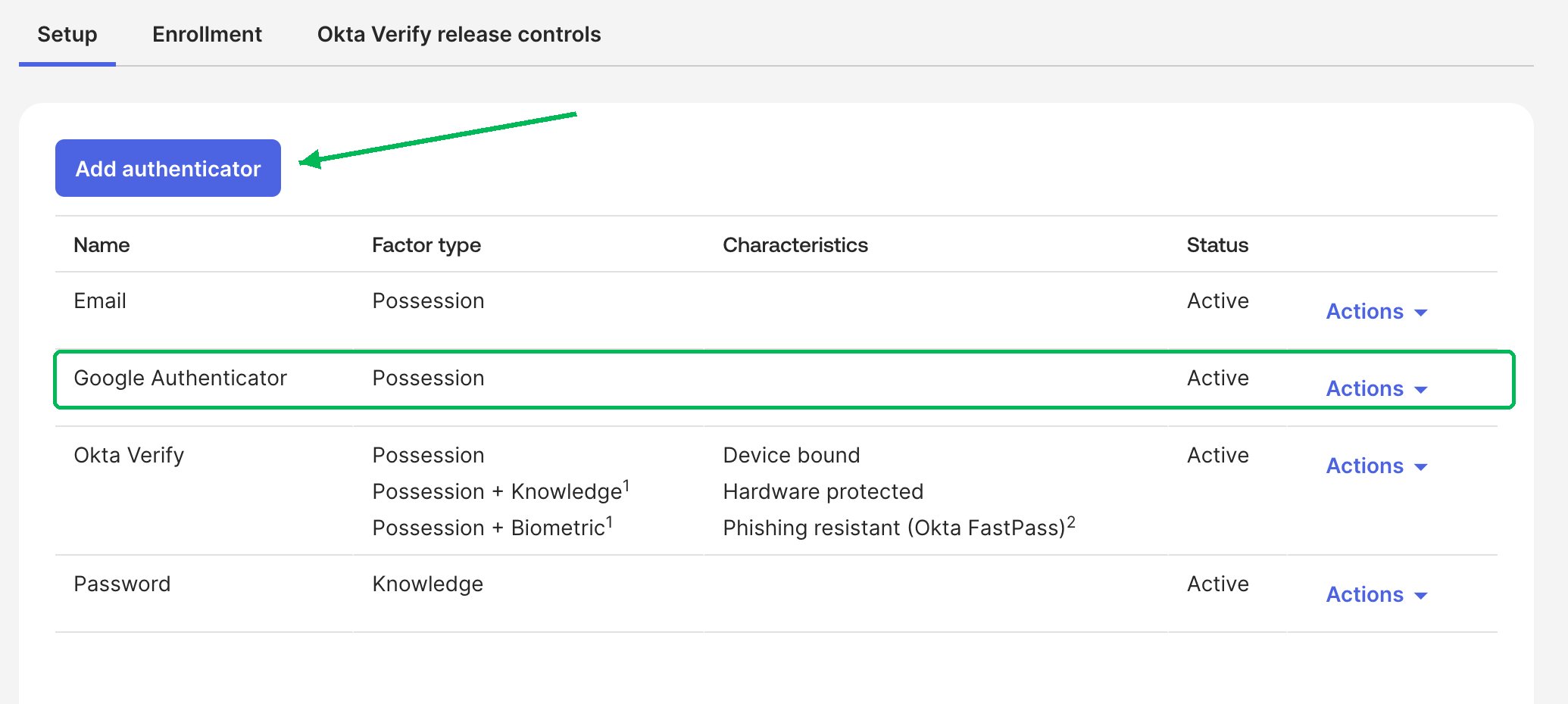 On the **Enrollment** tab, set Google Authenticator to Optional or Required for the group your
service account belongs to.
Check **Security** then **Authentication Policies** too. If the rule protecting your app
requires a phishing-resistant or device-bound factor, Okta rejects TOTP and keeps asking for
Okta Verify. The rule has to accept any possession factor. This is the step most likely to
block you.
Sign in as the service account, open its end-user settings, and set up Google Authenticator. On
the QR screen, click **Can't scan?** to reveal the base32 secret.
On the **Enrollment** tab, set Google Authenticator to Optional or Required for the group your
service account belongs to.
Check **Security** then **Authentication Policies** too. If the rule protecting your app
requires a phishing-resistant or device-bound factor, Okta rejects TOTP and keeps asking for
Okta Verify. The rule has to accept any possession factor. This is the step most likely to
block you.
Sign in as the service account, open its end-user settings, and set up Google Authenticator. On
the QR screen, click **Can't scan?** to reveal the base32 secret.
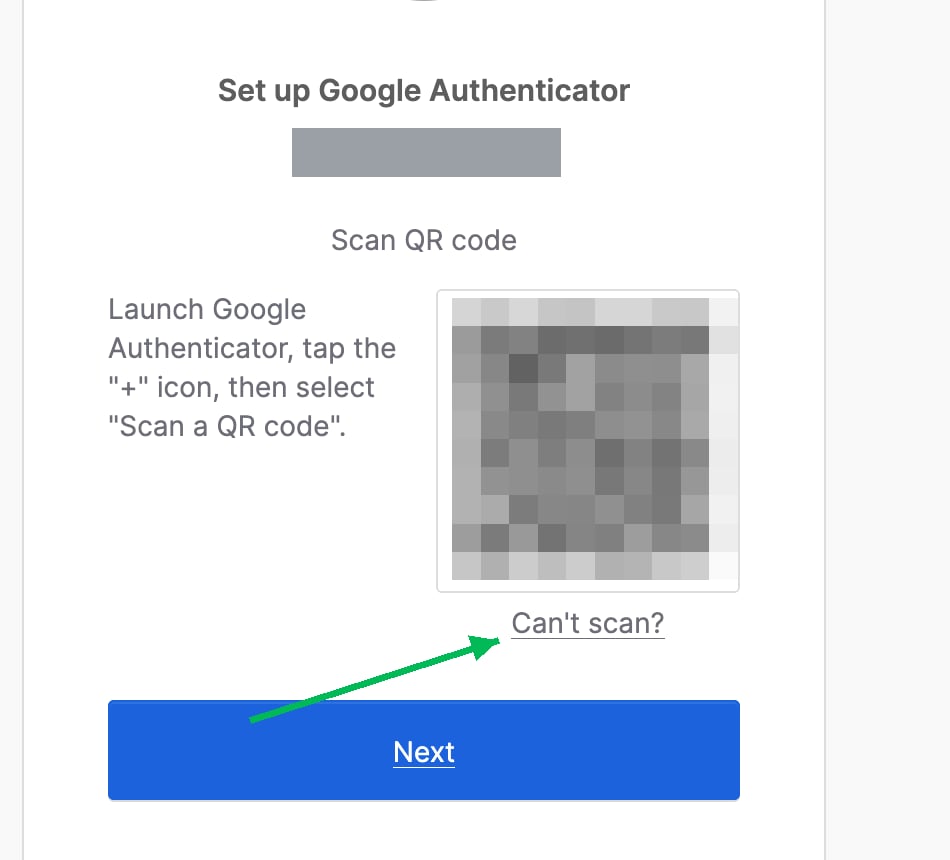 Copy that value. It is the `mfa-secret` in the next step.
Okta Verify shows a QR too, but it encodes an `oktaverify://` activation URL with no secret in
it. Only a TOTP authenticator gives you a reusable seed.
## Set up the Notte side
Create a vault and add the Okta credentials. Keep the `vault_id` it returns.
```bash theme={null}
notte vaults create
notte vaults credentials add \
--vault-id \
--url "https://.okta.com" \
--email "agent-svc@yourcompany.com" \
--password "" \
--mfa-secret ""
```
Credentials are encrypted at rest and never reach the model. Notte substitutes the real values
into the page only at fill time, and generates the one-time code from the stored secret.
Create a profile so the signed-in state can be saved, then start a session with both attached.
```bash theme={null}
notte profiles create
notte sessions start -y \
--vault-id \
--profile-id \
--profile-persist
```
Pass `-y`. Without it the CLI can stop on a confirmation prompt when another session is already
running, and in a non-interactive shell the session still starts but your flags are dropped,
leaving you with no vault and no profile.
With the Notte CLI and skill installed, ask Claude Code to walk the flow in plain language:
```text theme={null}
Using the notte CLI on session , sign in to https://.okta.com.
The credentials are in the attached vault. If Okta offers a choice of security method,
choose Google Authenticator, not Okta Verify. Observe the page after each step and stop
when the Okta dashboard has loaded.
```
It drives the browser with `notte page goto`, `notte page observe`, `notte page click` and
`notte page fill`, checking the page between actions. See
[Claude Code & AI Agents](/integrations/claude-code-ai-agents) for the full loop.
```bash theme={null}
notte page observe --session-id
```
A successful sign-in lands on `/app/UserHome`. You can also download the recording with
`notte sessions replay --session-id `.
## Result
The agent fills the username, picks Google Authenticator from the security method list, enters a code
generated from the stored secret, submits the password, and lands on the dashboard. No device and no
person in the loop.
Copy that value. It is the `mfa-secret` in the next step.
Okta Verify shows a QR too, but it encodes an `oktaverify://` activation URL with no secret in
it. Only a TOTP authenticator gives you a reusable seed.
## Set up the Notte side
Create a vault and add the Okta credentials. Keep the `vault_id` it returns.
```bash theme={null}
notte vaults create
notte vaults credentials add \
--vault-id \
--url "https://.okta.com" \
--email "agent-svc@yourcompany.com" \
--password "" \
--mfa-secret ""
```
Credentials are encrypted at rest and never reach the model. Notte substitutes the real values
into the page only at fill time, and generates the one-time code from the stored secret.
Create a profile so the signed-in state can be saved, then start a session with both attached.
```bash theme={null}
notte profiles create
notte sessions start -y \
--vault-id \
--profile-id \
--profile-persist
```
Pass `-y`. Without it the CLI can stop on a confirmation prompt when another session is already
running, and in a non-interactive shell the session still starts but your flags are dropped,
leaving you with no vault and no profile.
With the Notte CLI and skill installed, ask Claude Code to walk the flow in plain language:
```text theme={null}
Using the notte CLI on session , sign in to https://.okta.com.
The credentials are in the attached vault. If Okta offers a choice of security method,
choose Google Authenticator, not Okta Verify. Observe the page after each step and stop
when the Okta dashboard has loaded.
```
It drives the browser with `notte page goto`, `notte page observe`, `notte page click` and
`notte page fill`, checking the page between actions. See
[Claude Code & AI Agents](/integrations/claude-code-ai-agents) for the full loop.
```bash theme={null}
notte page observe --session-id
```
A successful sign-in lands on `/app/UserHome`. You can also download the recording with
`notte sessions replay --session-id `.
## Result
The agent fills the username, picks Google Authenticator from the security method list, enters a code
generated from the stored secret, submits the password, and lands on the dashboard. No device and no
person in the loop.
 Because the assistant reads the page before each action, it follows whatever order your org uses. The
run above asks for the factor before the password, which is an Okta policy choice rather than a fixed
sequence, and a hardcoded script would break on it.
## Reuse the signed-in state
With `--profile-persist`, the browser state is written back when the session closes, so the Okta
domain carries its cookies into the next session that attaches the same profile. See
[Browser Profiles](/features/sessions/browser-profiles) for how to reuse and refresh that state.
This documentation is built and hosted on [Mintlify](https://mintlify.com), a developer documentation platform.
Because the assistant reads the page before each action, it follows whatever order your org uses. The
run above asks for the factor before the password, which is an Okta policy choice rather than a fixed
sequence, and a hardcoded script would break on it.
## Reuse the signed-in state
With `--profile-persist`, the browser state is written back when the session closes, so the Okta
domain carries its cookies into the next session that attaches the same profile. See
[Browser Profiles](/features/sessions/browser-profiles) for how to reuse and refresh that state.
This documentation is built and hosted on [Mintlify](https://mintlify.com), a developer documentation platform.